Embedding Models
Learn how to configure embedding models for your knowledge base, including pre-configured options, custom models, and API rate-limit settings for optimal performance.
Pre-configured Embedding Models
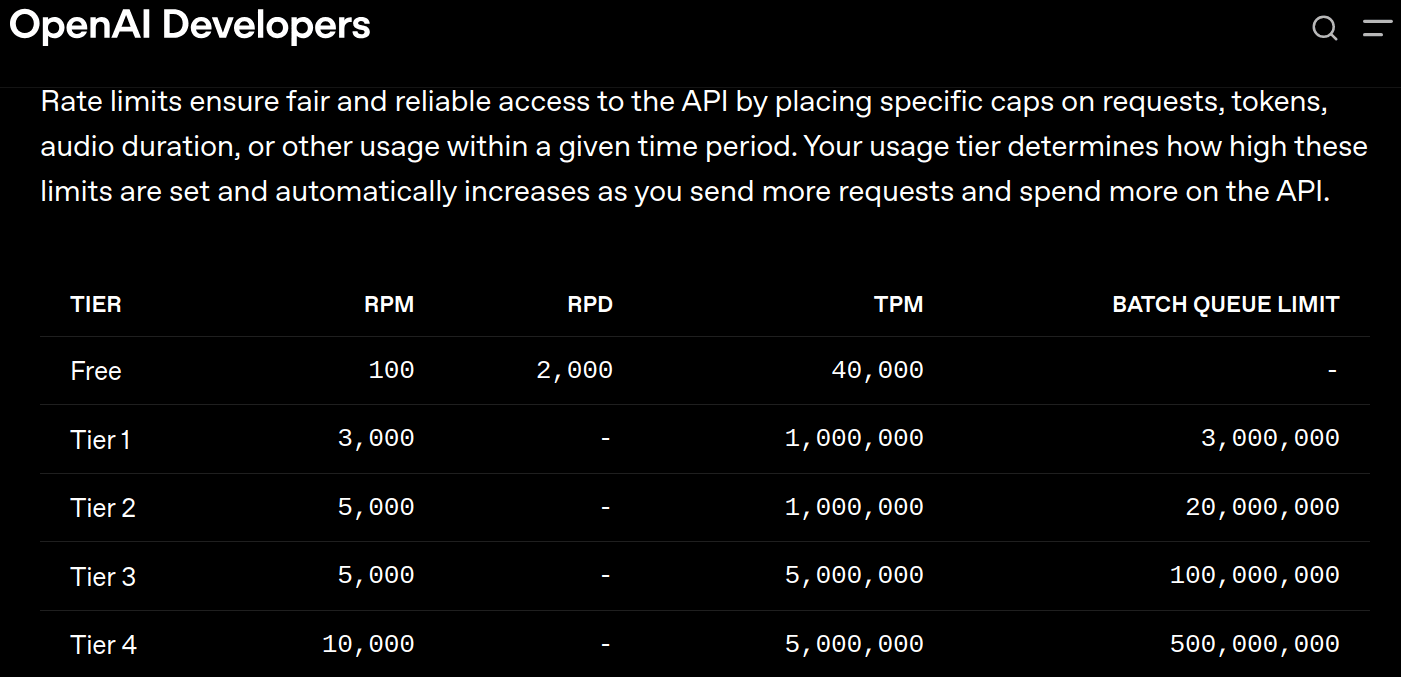
The system provides two pre-configured embedding models. You will need to select an embedding model later in the setup process when creating a knowledge base.
Recommended:
For optimal results, we advise using jina-code-embeddings-1.5b.
Alternative: You may also use OpenAI's text-embedding-3-small.
Using Custom Models
You are not limited to these default options; you are free to use any custom embedding model as long as it is compatible with OpenAIEmbeddings. When configuring a custom model, please adhere to the following guidelines:
Dimensions:
We highly recommend selecting a model with vector dimensions equal—or as close as possible—to 1536. Always consult your chosen model's official documentation to verify its supported dimensions before use.
Naming Conventions: Please note that model names on OpenRouter may differ from the names used by their original providers.
Adding a New Embedding Model
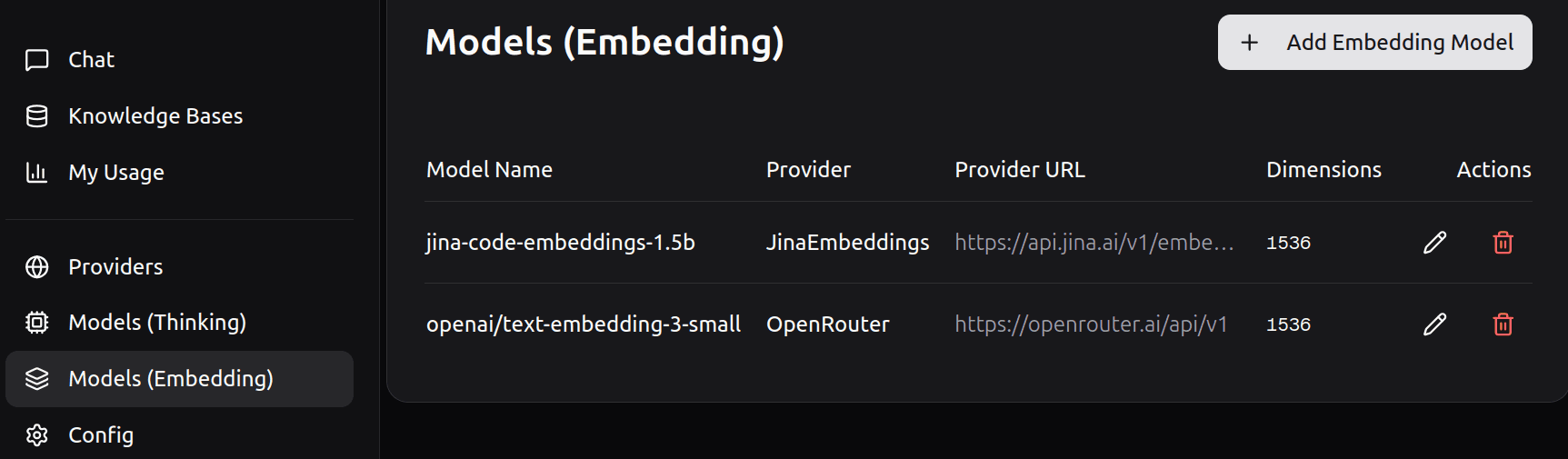
Adding a custom model requires specific configuration details. Before filling out this form, please consult the model provider's official documentation to verify the following:
Model Name:
Ensure you have the exact model identifier (e.g., text-embedding-3-small).
Dimensions:
Consult the provider's documentation to verify the supported dimensions for your model.
Configuration Settings
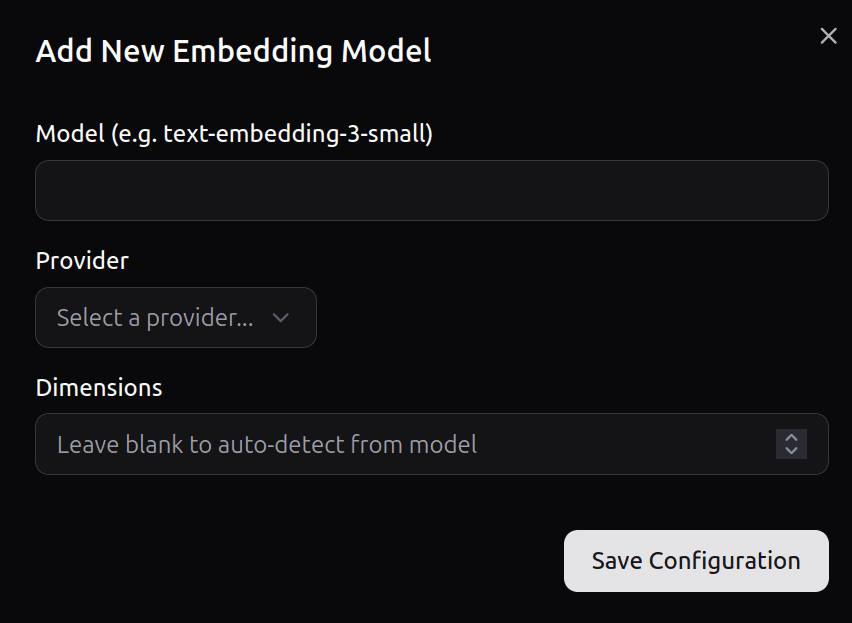
Navigating to Config in the left-hand menu reveals two parameters directly tied to your chosen embedding model. To ensure optimal performance, consult your model provider's documentation and adjust these settings accordingly:
ingestor-worker-embedding-api-concurrency: Check the provider's supported API concurrency and update this value to match. Important: Ensure your local machine's hardware can also support the specified concurrency level.
ingestor-worker-embedding-api-rate-limit: Verify the API rate limit imposed by your provider and adjust this parameter to prevent rate-limiting errors. While the system features a built-in retry mechanism that will eventually process your files if you exceed the limit (resulting in a "too many requests" error), relying on this is strongly discouraged. Consistently overloading the API may result in the provider blocking your access entirely.
Why This Matters: Properly configuring these values is crucial for efficiency. The initial ingestion of your Knowledge Base is resource-intensive and can take anywhere from a few minutes to several hours, depending on these settings and the size of your data. However, subsequent ingestions will typically complete in under a minute even if you use the default configuration.
Jina AI Rate Limits (Default Configuration)
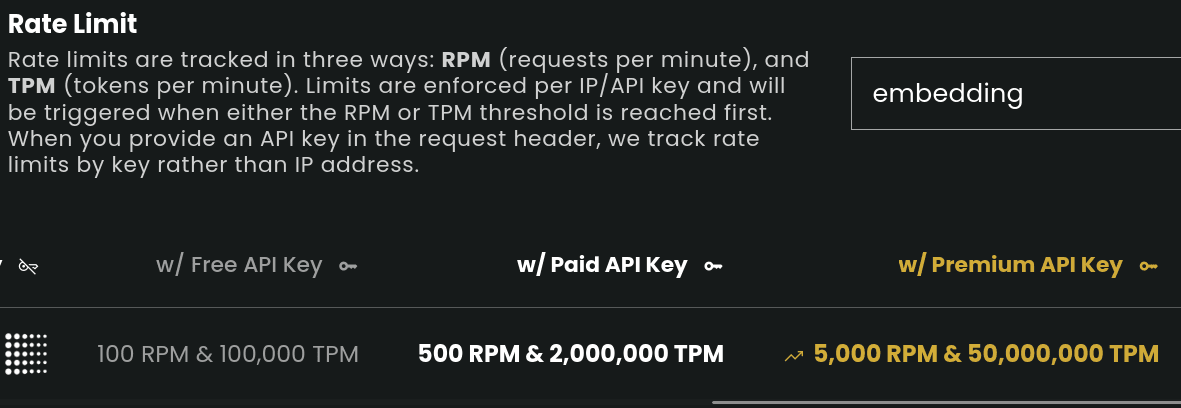
By default, the settings on the Config page are pre-configured to align with the rate limits of a Jina Free API Key (100 RPM) , as shown below.
If you upgrade to a higher tier—such as a Paid or Premium API key—be sure to update your configuration settings to take full advantage of the increased rate limits. Because embedding models are highly cost-effective, credits on a Paid or Premium plan can easily last for several months or even up to a year, depending on your usage.
OpenAI Rate Limits
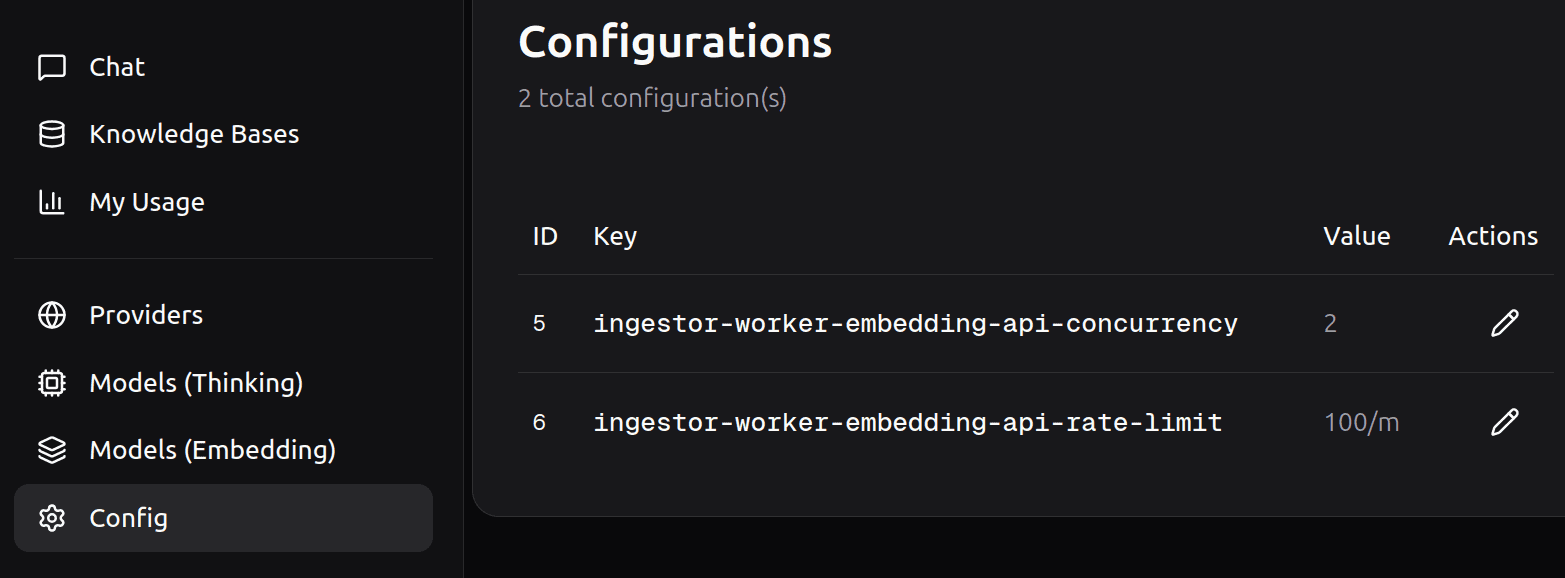
For reference, this image outlines the official Requests Per Minute (RPM) limits across OpenAI's API usage tiers. If you are using an OpenAI model, check your current account tier in their dashboard and update your ingestor-worker-embedding-api-rate-limit parameter accordingly.