👋 Before You Begin: Select Your Role
To ensure you see the correct instructions for your setup, please select your user profile from the dropdown menu in the left sidebar. This will instantly customize the documentation to show exactly what you need:
- Single User (Local): For individuals installing and running Ether directly on their own personal machine.
- Admin Setup: For administrators installing and configuring Ether on a centralized company server.
- Regular User: For team members accessing an existing Ether installation provided by your company.
Getting Started with Ether
Follow this step-by-step guide to create your account, set up your team, download and install Ether on your machine.
Create an Account
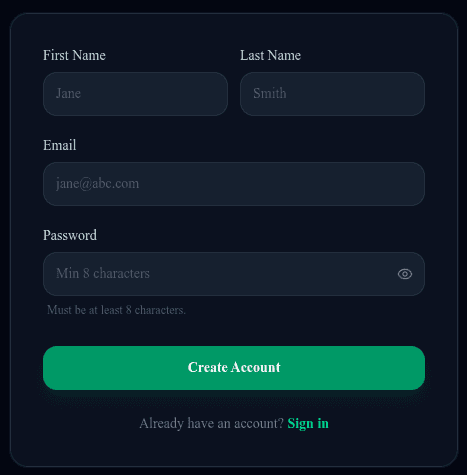
Click the Start Free button in the top navigation menu to begin creating your account.
Verify Email & View Subscriptions
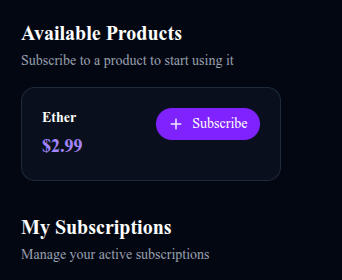
A 6-digit verification code will be sent to the email you provided. Once entered, you will be redirected to the subscriptions page. Select the Ether product and click Subscribe.
Payment (Sandbox Mode)
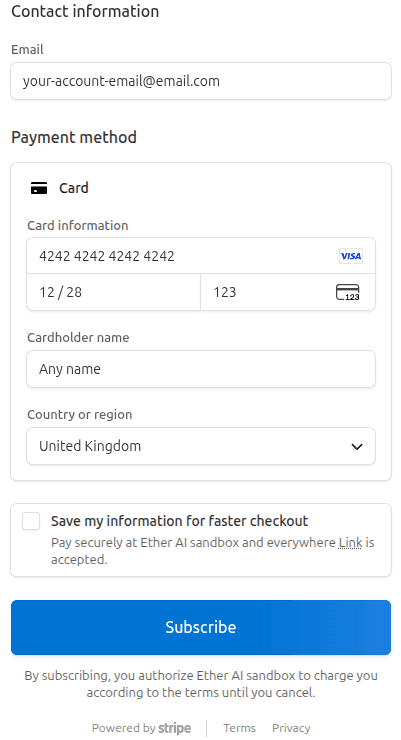
You will be redirected to a secure Stripe checkout page. Overclock does not store any payment information.
Note:
Ether is currently completely free! Because our billing system is running in sandbox mode for the next few months, you will not be charged. Please use the test credit card credentials below to complete your registration:
- Card Number:
4242 4242 4242 4242 - Expiration Date:
12/28(or any valid future date) - CVC:
123
Installation & Downloading Ether
It is now time to download the Ether product.
Prerequisite:
You must have Docker installed on your machine before proceeding.
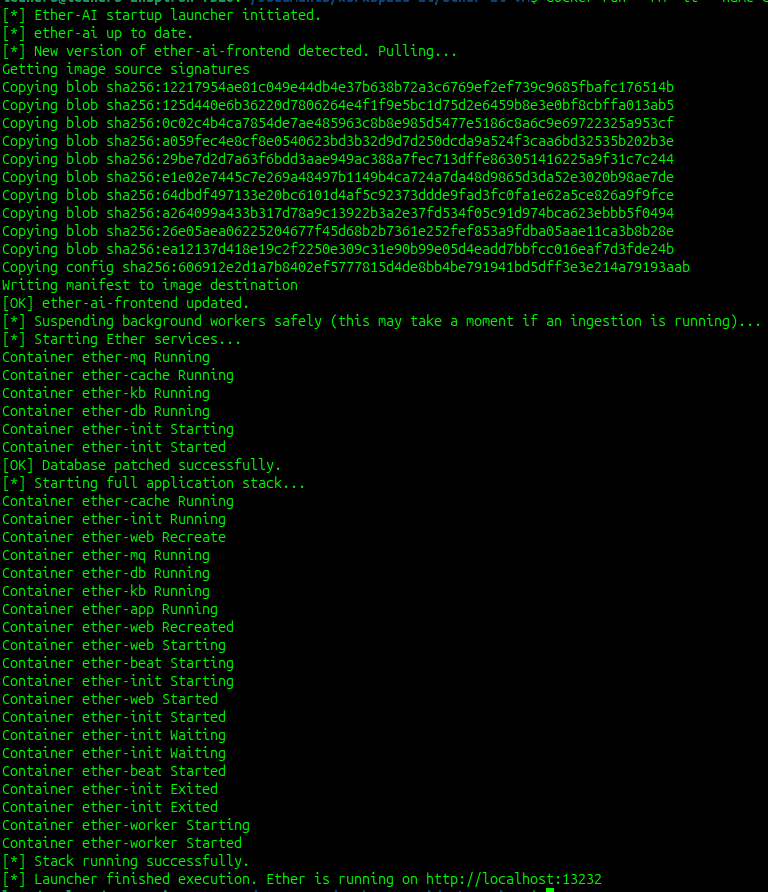
Run the following command in your terminal:
docker run --rm -it --pull always --name ether-launcher \
  -v /var/run/docker.sock:/var/run/docker.sock \
  -v launcher_workdir:/opt/ether-launcher \
  ghcr.io/overclock-labs/ether-launcher:latest
This command downloads the necessary images, pulls the Ether product, and starts all background services.
Accessing Ether
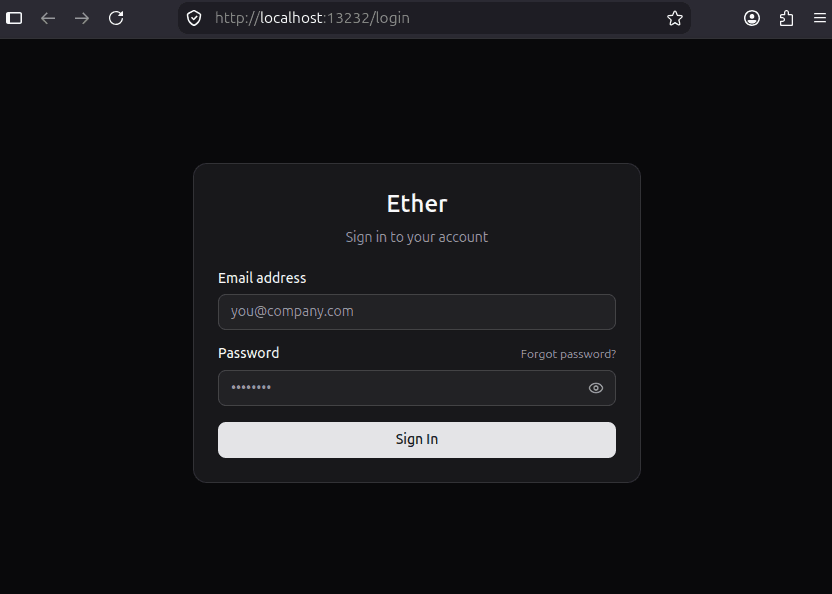
Open your browser and navigate to http://localhost:13232 to access the application.
Use the e-mail and password you configured in the Overclock portal.