Knowledge Bases
In Ether, a Knowledge Base acts as the intelligent memory of your system. It is where ingested code repositories and documentation are transformed into searchable data, giving the AI agents the deep contextual awareness they need to accurately debug issues and generate new features across massive codebases.
Alongside Ether's powerful agents, this specific structure maximizes model precision while consuming fewer tokens—an architectural advantage that sets Ether apart from traditional code assistants on the market.
Creating a GitHub Fine-Grained Token
To allow the platform to ingest your repositories and manage pull requests, you must provide a GitHub Fine-grained Personal Access Token. Navigate to your GitHub Token Settings and click the Generate new token button.
Important:
Agent Downtime: AI agents will stop functioning immediately if your Personal Access Token (PAT) expires. It is your responsibility to renew or update the token prior to its expiration date.
Expiration Settings: You can set your PAT to "No expiration" to prevent service interruptions, though GitHub cautions against this for security reasons.
Token Security: For peace of mind, all access tokens are automatically encrypted as soon as they are added to the knowledge base. Furthermore, they are stored locally and never leave your machine.
Repository Access
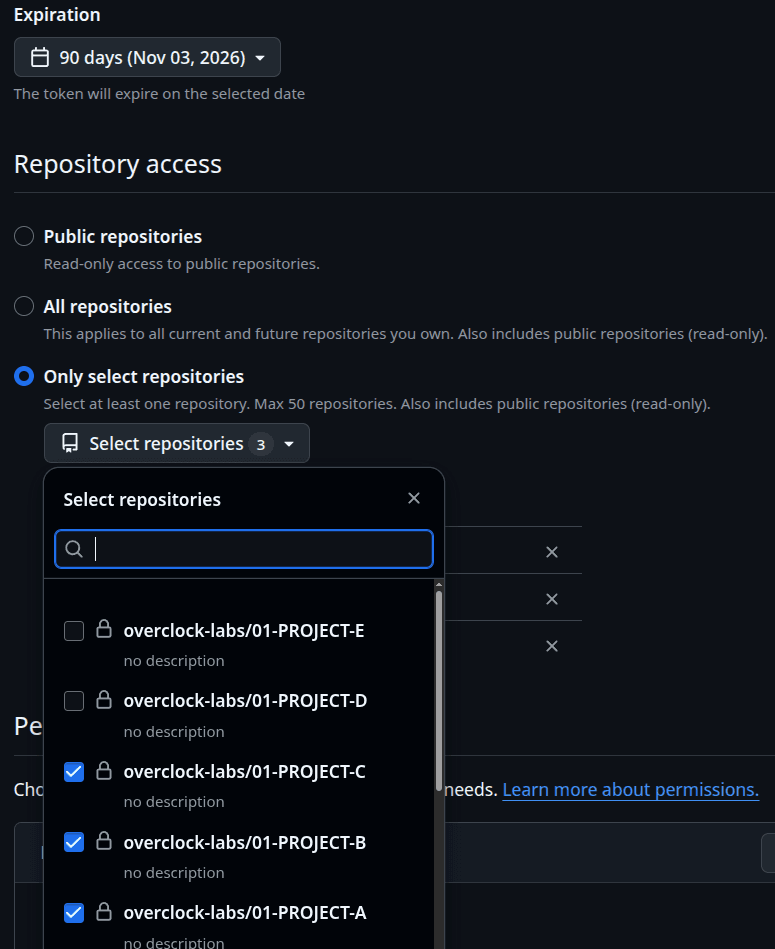
Under the Repository access section, choose Only select repositories. You can then search and add the specific repositories you want the AI to access (for example: Project A, Project B, and Project C).
You can create as many Knowledge Bases as you need. To get the best results, select only the repositories that are specific to a single architectural domain—such as your frontend, backend, and common libraries. By grouping these interdependent projects into the Knowledge Base you are creating right now, the agent gains the context required to execute cross-repository feature development simultaneously.
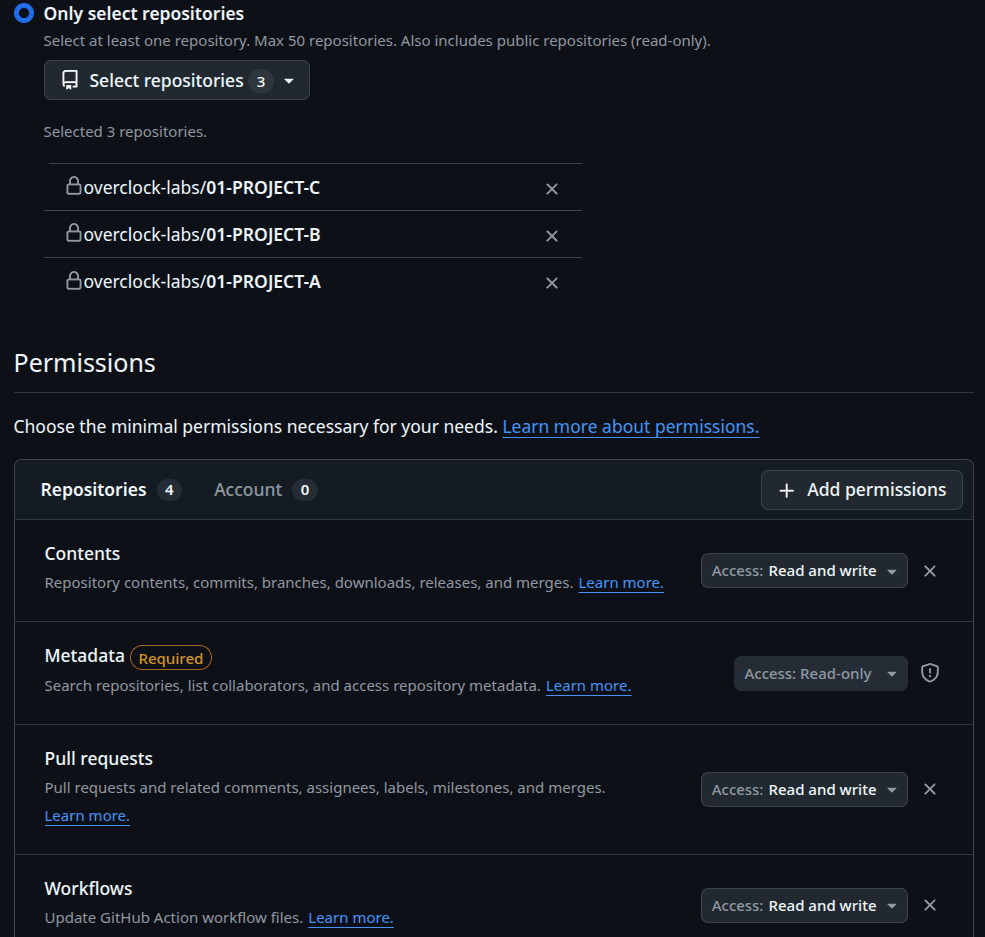
Next, scroll down to the Repository permissions section and grant the exact access levels required:
- Metadata: Read-only (Usually selected by default)
- Contents: Read and write
- Pull requests: Read and write
- Workflows: Read and write
Once configured, click Generate token at the bottom of the page. Copy the generated token immediately and paste it into your Knowledge Base creation form, as GitHub will never display it again.
Creating a New Knowledge Base
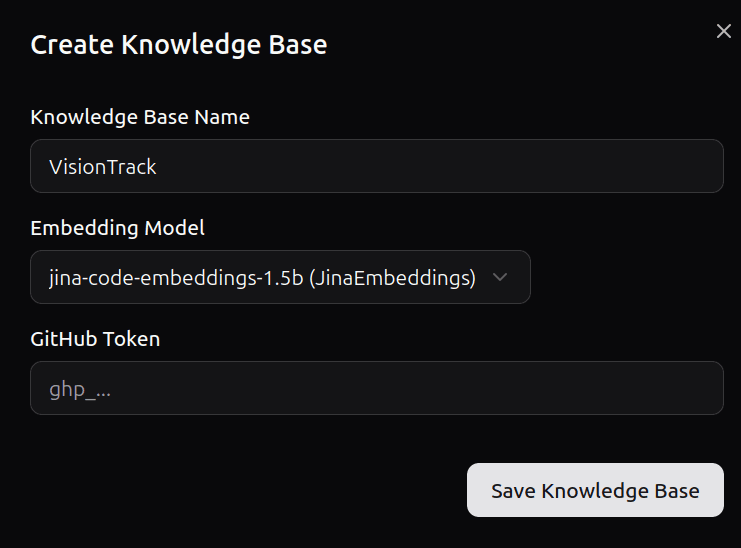
Provide a clear and descriptive name for your new Knowledge Base. Next, select your preferred embedding model from the dropdown menu and insert your previously generated GitHub token. Once you have filled in all the required fields, click the Save Knowledge Base button to finalize the creation.
Managing your Knowledge Base
Once your Knowledge Base is created, you will see a list of available actions on the right side of the table. The options available to you depend on your system role and assigned permissions.
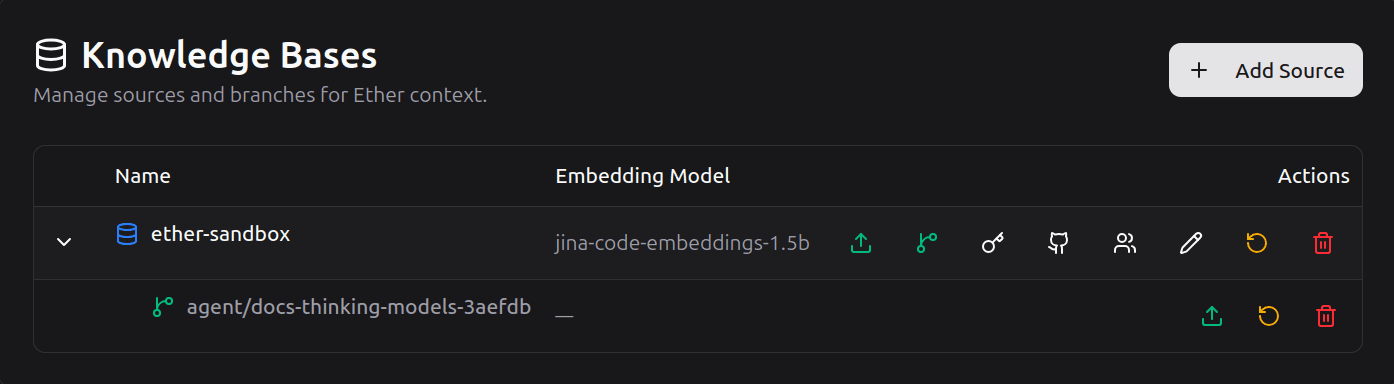
- Start Ingestion: Initiates the Knowledge Base ingestion process. The initial run may take some time depending on repository size, but subsequent updates will be fast and will automatically occur every hour in the background. You can also trigger this process manually at any time to ensure your Knowledge Base is synchronized with your remote repositories before using the chat for new requests.
- Manage Branches: Creates an internal Knowledge Base branch. The branch must already exist in your GitHub repository before adding it here. For the AI agent to successfully operate on a specific branch, it must be prefixed with
agent/your_branch_name.
Branches automatically created by the agent during chat requests will appear here and will be automatically removed once the associated Pull Request is closed or merged. Note: If you manually push changes to a branch the agent is actively working on, you must manually click the ingestion icon (Upload) next to that specific branch so the agent can update its context. - View Repositories: Displays all the GitHub repositories currently composing this specific Knowledge Base.
- Edit Knowledge Base: Allows you to modify the Knowledge Base settings and update your GitHub token if it changes or expires.
- Reset: Clears all existing data. After resetting, you must manually click the Start Ingestion button to rebuild the Knowledge Base from scratch.
- Delete: Permanently removes the Knowledge Base and all associated data from Ethers.
Monitoring the Ingestion Process
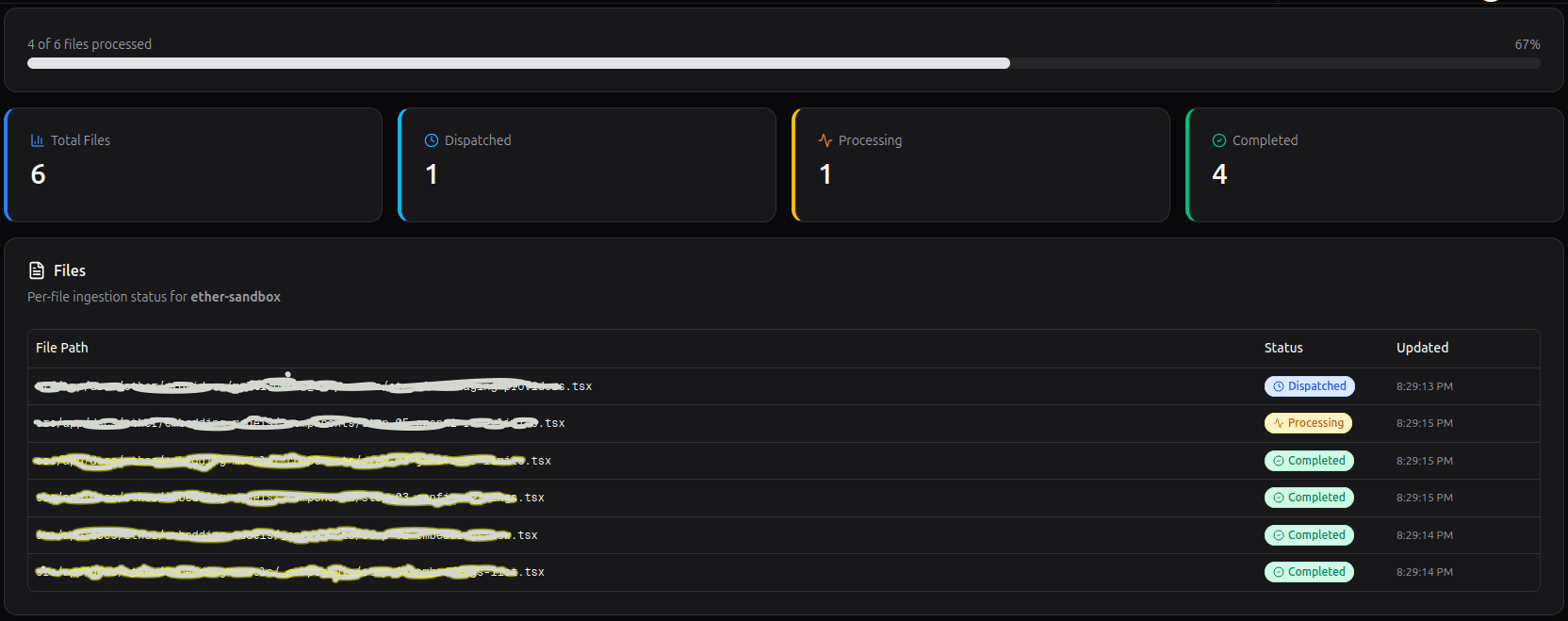
Once you click the Start Ingestion button, you will be taken to the progress screen shown below. Please wait for this process to fully complete before starting a new chat session to ensure the AI has access to your latest repository data.